Before you begin
The Billing vs Income Report will allow you to see an overview of what you've billed and receipted in a set period, as well as detailed reports for both. This is the main financial report in Genie and is the one that should be used for determining a provider's pays and dividends.
You must run an integrity check before performing any financial reports to ensure the accuracy of your fiscal data.
It is recommended to receipt all possible ECLIPSE claims before the Billing vs Income report is generated. If not, the receipts total may change if the report for this date period is reprinted.
Running the report
Navigate to File > Maintenance and Reports > Practice Analysis. Click the Billing vs Income Report option in the top-left and you will be presented with the following window.
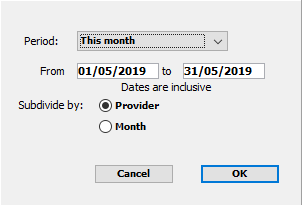
Enter the relevant details and press OK to run the report in your set parameters.
| Period: | Choose from Today, This month, Last month, Current Quarter, Last Quarter, This financial year, Last financial year, and Custom.
GST will not necessarily be calculated correctly using a custom date range. |
| From ... to ... | If you choose Custom in the Period drop-down, you can modify these fields to a date range of your choice. |
| Subdivide by: | Choose to subdivide the report by your providers, or by each month in the selected date range. |
Providers from your address book may appear on this report (with Assist. in brackets) if they have been added to an invoice using the "Include Asst's Fee" workflow. Assistant items billed for your providers through "Invoice as Asst" will appear within the provider's totals.
ECLIPSE invoices where the servicing provider has been manually set to "Assistant" will not have the (Assist.) suffix. If the provider name matches a Genie user, this will appear in the provider's totals.
Report columns overview

| Provider / Month | List of providers with billings (or months) within the selected period.
This will depend on how you chose to sort the report in the initial settings window. |
| Billing | This is the combined total value of invoices (fees) including GST. This includes all invoices that were created in the chosen period. |
| GST Billed | This is the value of GST charged as part of the invoiced fees. |
| Credits | This refers to the Credits column in the account history window. This amount will show any value that has been applied to "write off" or otherwise signify that an invoiced amount is no longer required / expected to be paid. |
| Discounts | The sum of all discounts applied to items that were billed in the chosen period. Discounts are applied to the total price (including GST, if applicable). |
| Net Billing | Gross billing LESS GST LESS Credits and Discounts. This is the real, actual billing for the provider / month. |
| Receipts | This is the combined total value of receipts including GST. This includes all receipts that were dated (not necessarily created) in the chosen period, including backdated receipts. |
| GST Collected | This is the value of GST that has been receipted as part of a cash payment. The "Cash" notation is in relation to Cash vs Accruals accounting, indicating that this value should be used if cash-based accounting is the preferred method. This also means that this value relates to the Print Receipts, not the Sales. |
| Difference | This figure is the difference between the Billing amount and the Receipts amount. |
| Inv | This shows the number of invoices billed to this provider for the chosen period.
This is not necessarily the number of patient contacts. |
Report buttons overview
Once you have generated the report, you have the following options:
With a record highlighted in the generated report, click any of the buttons at the top of the window and it will generate a particular report for the selected provider.
Print Breakdown
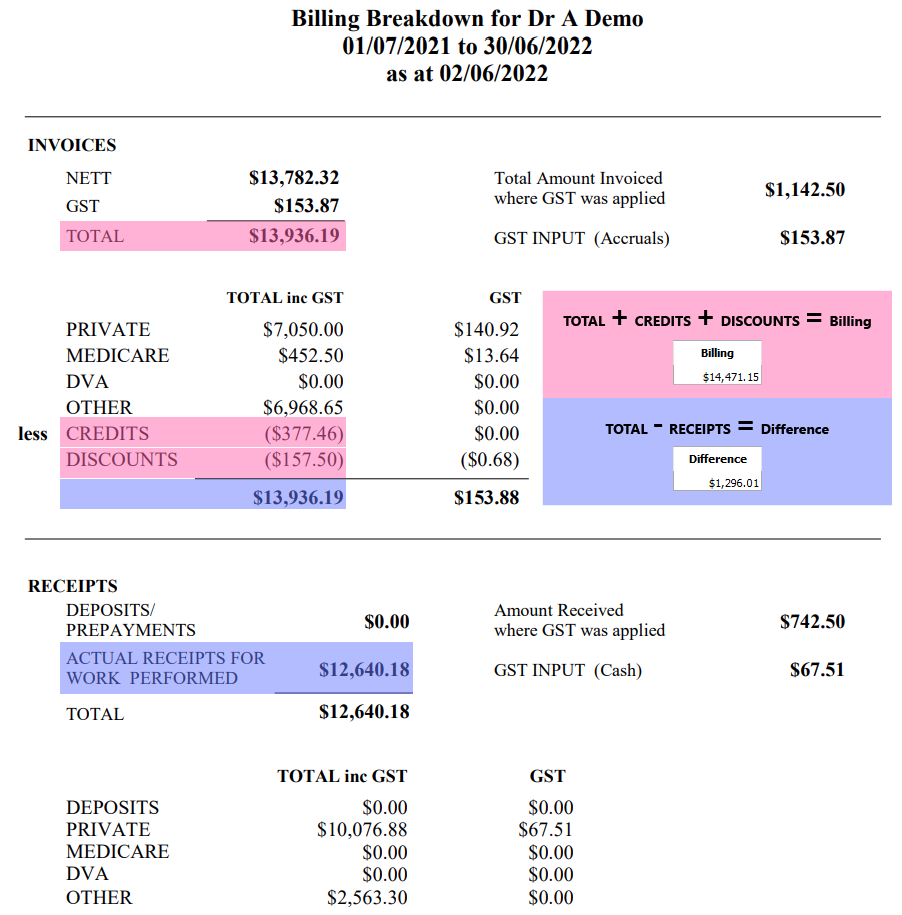
This will print a detailed spreadsheet of your invoicing and receipt totals, including a breakdown between bulk-billed Medicare and DVA, private and other organisational billing / receipting.
Glossary of terms
| Other | Any account holder that does not fall under the Individual (patient or person), Medicare, or DVA. This will include health funds and insurers, as well as custom account holders such as hospitals, law firms, and other businesses. |
| Total amount invoiced where GST was applied | Total value of the invoices where a GST component was applied or included. |
| GST Input (Accruals) | The value of the GST included in the above invoices. |
| Actual receipts for work performed | The full value of receipts processed within this period, based on receipt date. This will include deposits which have been applied to a receipt. |
| Amount received where GST was applied | The total value of receipts which have been paid against an item where GST was included.
Example: Invoice 1 is a total of $100 which includes $10 GST. Invoice 2 has a total of $90 with no GST charged. Both invoices have been paid in full, however, this section will only reflect Invoice 1. This is because no GST was included on Invoice 2 (or the payment for it). |
| GST Input (Cash) | This is the total amount of GST that has been receipted from actual payments. |
Print / Export Sales
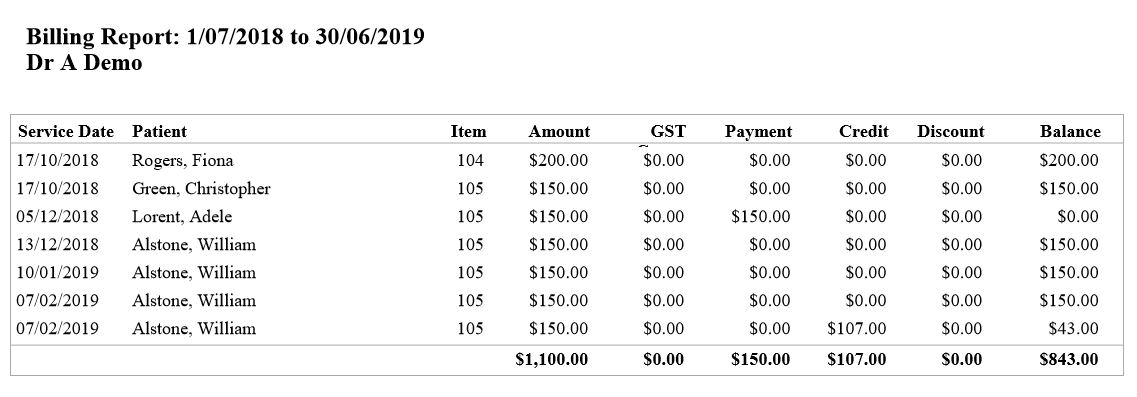
This will generate a listed report of all items invoiced during the select time period.
You will be prompted to choose whether you would like these sub-totalled by item number, and subsequently whether you would like to print the report, or export the information to an Excel spreadsheet.
Glossary of terms
| Amount | This will be equal to the Billing column on the main page of the Billing vs Income report. |
| GST | This will be equal to the GST column in the Billing vs Income report.
If this total is different, please submit a request to Genie support. |
| Payment | The payments refer directly to the invoices raised within the chosen date range, so it will not account for items receipted from a previous period.
Example: If you receive payment for an invoice that was created outside of the current search period, it will not be included here. |
| Credit | This will show the credits (if any) applied to invoices raised within the current search period. |
| Discount | This will show the discounts (if any) applied to invoices raised within the current search period. |
| Balance | This will display the balance, which is equal to Billing - (Payments + Credits + Discounts). |
Print / Export Receipts
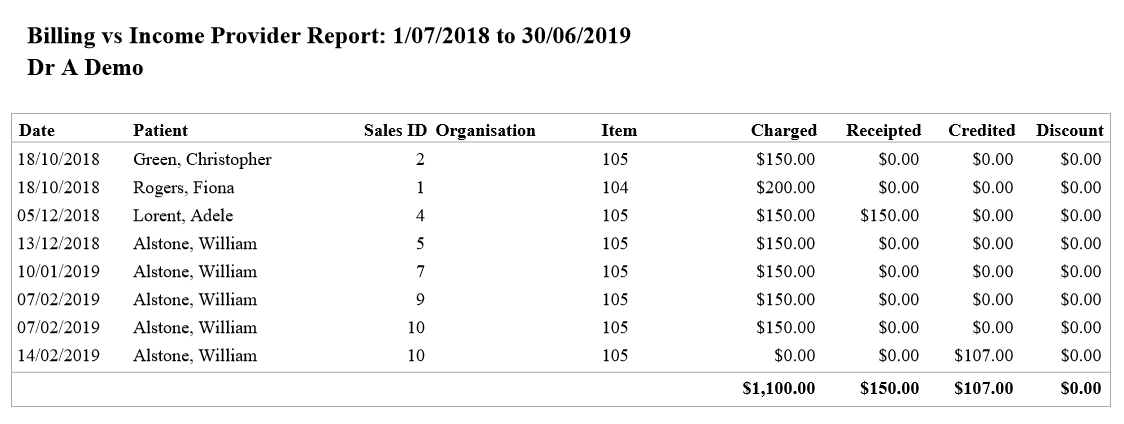
This will generate a listed report of all receipts created during the select time period, regardless of whether the actual invoice was created during this time period or not.
You will be prompted to choose whether you would like to print the report, or export the information to an Excel spreadsheet.
Glossary of terms
| Date | This is the receipt date, not the date of the invoice. |
| Charged | Total value should be equivalent to the Billing total in the main Billing vs Income report. |
| Receipted | Total value should be equivalent to the Receipt value in the main Billing vs Income report. |
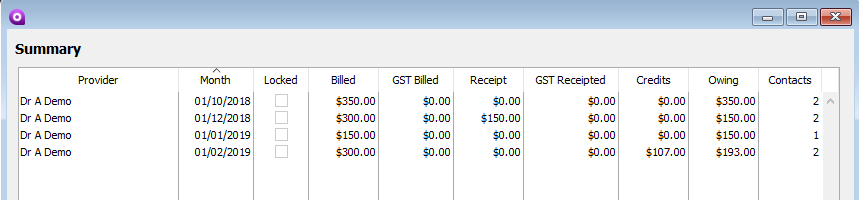
Summary Records
This will display the summary records for each provider.
These figures are updated and will be the most accurate after performing an integrity check.
Miscellaneous buttons
 | This will export the main page of the Billing vs Income report to an Excel spreadsheet, as it appears on the screen. For more detailed information, you should use the Print / Export Sales or Print / Export Receipts buttons. |
 | This will graph the Billing vs Income report, which you can print or save as an image. |
 | This will print the Billing vs Income report as it appears on screen. |